
Connecting to a BBS
using DOSBox and Telemate

Connecting to a BBS using DOSBox and Telemate?
Yes that is correct you read that properly. We’ll ignore the why part that usually occurs when you tell people you want to connect to a BBS. Because honestly they are still some of the coolest bits of technology around despite being ~35 years old.
Before we go any further I want to mention at the bottom of this article are links to Telemate v4.21 and DOSBox-Staging which you will need to complete the tutorial. There’s also a video tutorial for those prefer to watch over read. It’s less than 4 minutes.
What is a BBS?
BBS stands for Bulletin Board System. Way back in the ye olden days before we all had fancy wireless internet in our pockets or high speed fiber. We would call up another machine using our phone line. In the very early days this meant 300 baud modems.
So what sort of things did people do with BBS’s back then? Well all sorts of things we do now honestly. BBS’s offered the ability to upload/download files, message boards(forums), real time chatting, games, and later on email services.
How do we connect to a BBS using DOSBox and Telemate?
Step 1) You need to download Telemate and DOSBox-Staging. Links are provided below. You may also use DOSBox or DOSBox-X if you prefer. The steps are roughly the same anyhow.
Next open up your DOSBox configuration file. This is found in Appdata on Windows and in .local inside of Linux. If you use the Flatpak version of DOSBox-Staging on Linux then it’s located in the .var folder.
Now that you have your DOSBox conf file open. You are going to want to scroll down until you find the [serial] option.
serial1 = dummy
You should see a few serial options from 1 to 4. The first one is the one we want to change. Change serial1 from what you see above to below
serial2 = model listenport 23
This will enable us to telnet out of DOSBox. Next you want to extract the Telemate zip to your DOSBox folder if you already have a preconfigured DOSBox if not then next we’ll mount the directory.
So extract the TM folder and put ita a DOS in your C:\ drive on Windows or in the HOME folder on Linux. You may put these anywhere you like but for this tutorial this is the path we will use.
Windows
C:\DOS\TM
Linux
/DOS/TM
Next inside of DOSBox we will need to mount our folder so that we can load into it. We will use the mount command
mount <drive> <path to folder>
Windows
mount C C:\DOS\TM
Linux
mount C ~/DOS/TM
Then we just need to tell DOSBox to change to the C drive by typing
C:
Into the DOS Prompt. Next we will just cd tm to change to the telemate directory
C:\>cd tm
Now from inside of here we just type TM to run the telemate client
C:\>TM
If all goes well you should see the screen below
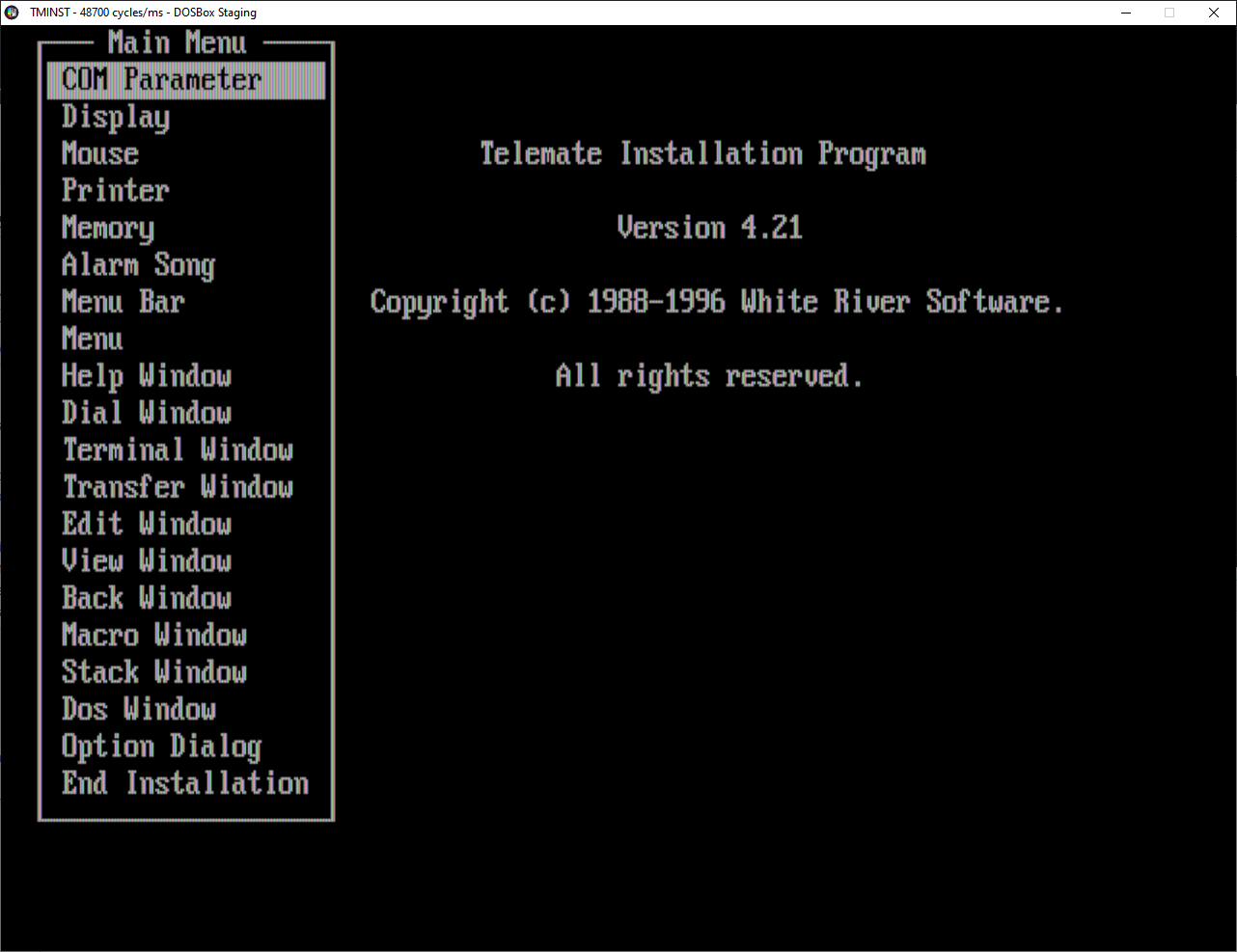
Go into COM Parameter. Inside of here we can make a few changes to speed up our connection slightly.
Baud Rate → 115200
Next we’ll go into Display and make a few quick changes. There is a Video Height option which allows you to adjust the display size. Most BBS’s run at 80x25 so it’s best to leave it at the default of 25. But you may change this if you wish.
Video Type → Color
Video Cache → On
Next we’ll change the memory.
Memory XMS HiMem → On
EGA/VGA Ram → 64KB
That is it! Now you just hit End Installation and Save Setup. You have now successfully configured Telemate congrats! You can relaunch the Telemate Setup Config anytime by typing TMINST in the Promp of the TM folder. If all went well you should see below.
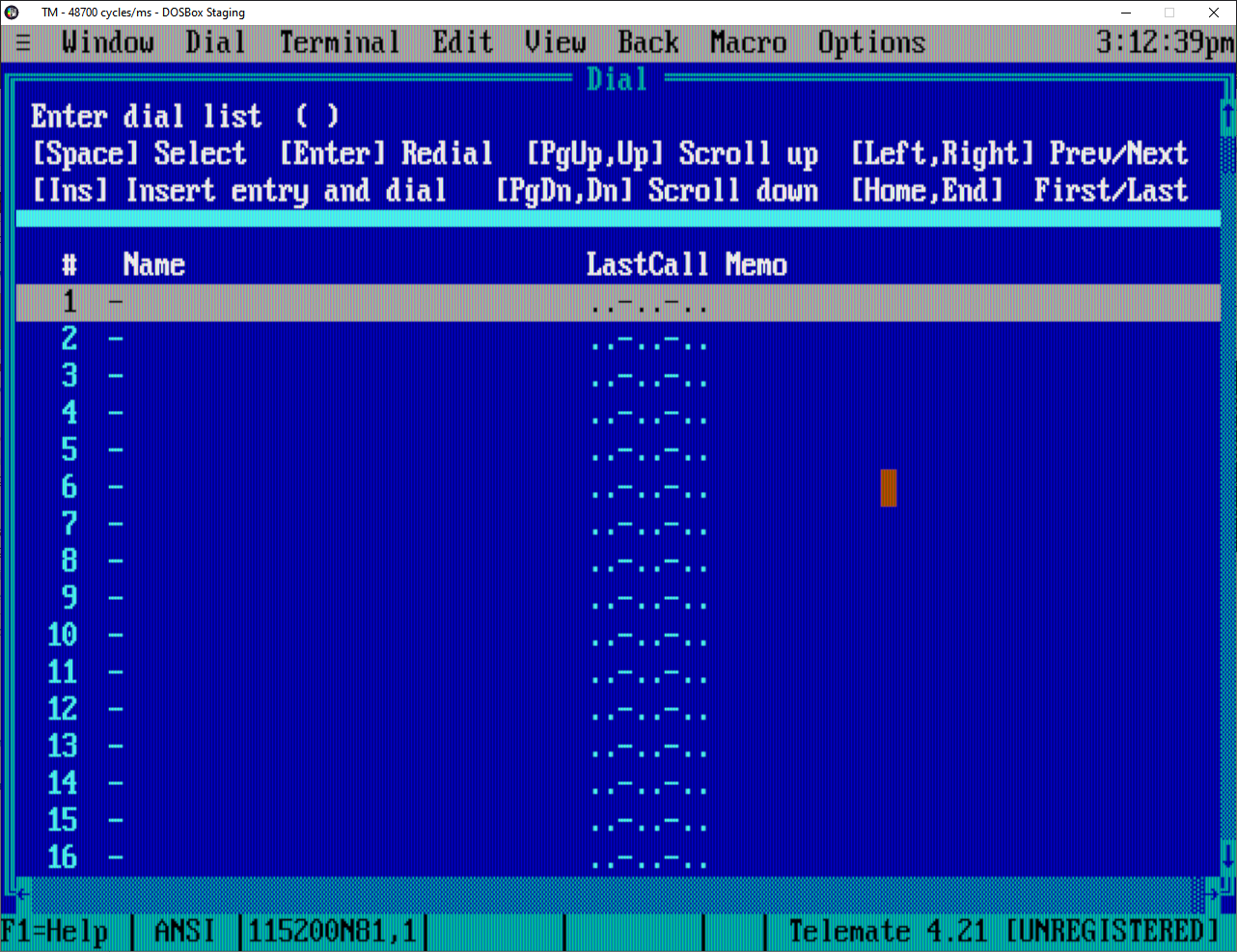
Just hit escape here and it will take you to a prompt so we can actually connect to a BBS. It looks something like this.
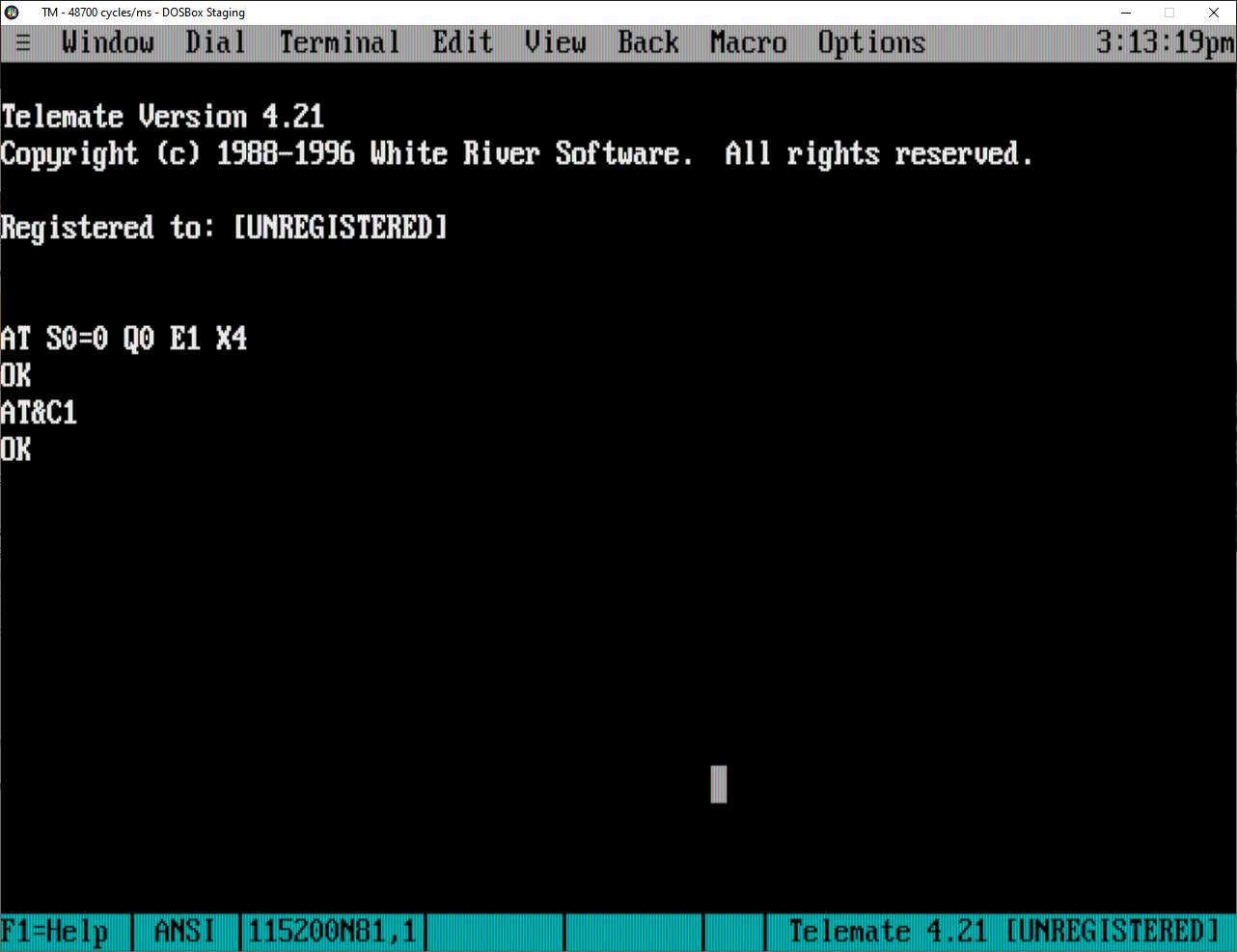
The command to connect to a BBS is as follows. The port is optional if it’s port 23 then it should auto connect without specifiying the port.
atdt <bbs ip/url>:<port|optional>
Example → bbs.error200.tech:1337
So now we will connect to the Error 200 Tech BBS. It is the BBS that me and Eric of The Retro Dev run together.
atdt bbs.error200.tech:1337
If everything went well you should see what you see below.
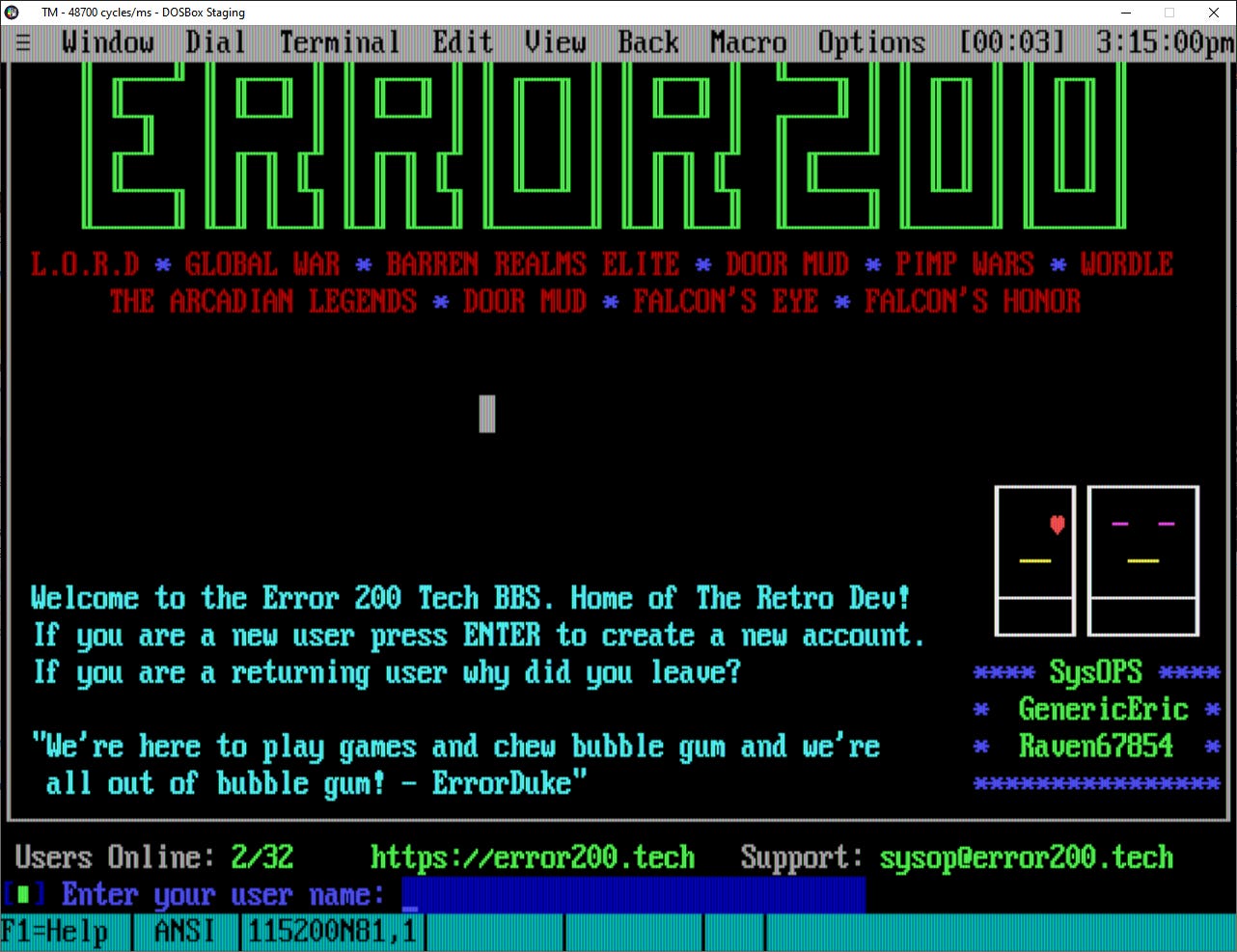
So there you have it! Now you can connect to any BBS you want too! All from the comfort of your lovely DOSBox. Thanks for reading everyone please send a message if you get stuck I’d be happy to help out!
Useful links
Thank you for reading The Retro Dev! Please consider supporting us if you like our content.
Site * Forum * Odysee * YouTube * Merchandise